Getting Started
Create an account, confirm email, and understand approval.
What Norman Church of Christ is
Norman Church of Christ helps approved members stay connected through announcements, the directory, chat, calendar events, communion signup, speaking swaps, and profile settings.
New accounts can be created before approval, but private member areas stay locked until an admin approves the profile.
Create an account
Use email and password signup or Google signup from the sign-in page. Email/password signup asks you to confirm your password before the request is sent.
After signup, check your email for the Supabase confirmation link. After email confirmation, wait for an app administrator to approve your account.
Sign in and pending access
After approval, sign in with the same method you used to create the account. If you used Google signup, continue with Google.
If the app says you are waiting for approval, your account exists but has not been approved yet. Contact an app administrator if it seems stuck.
Install on iPhone
Add the app icon to an iPhone Home Screen.
Install from Safari
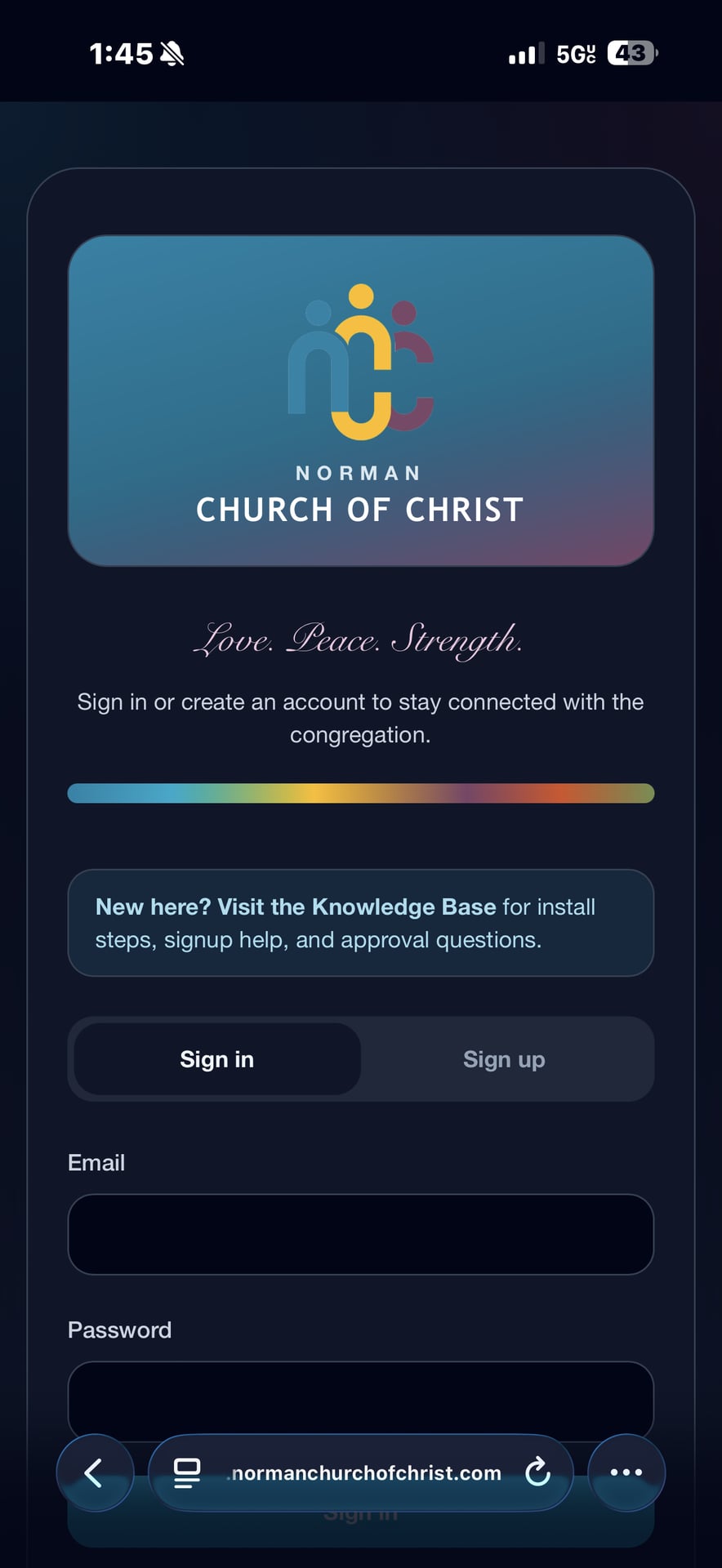
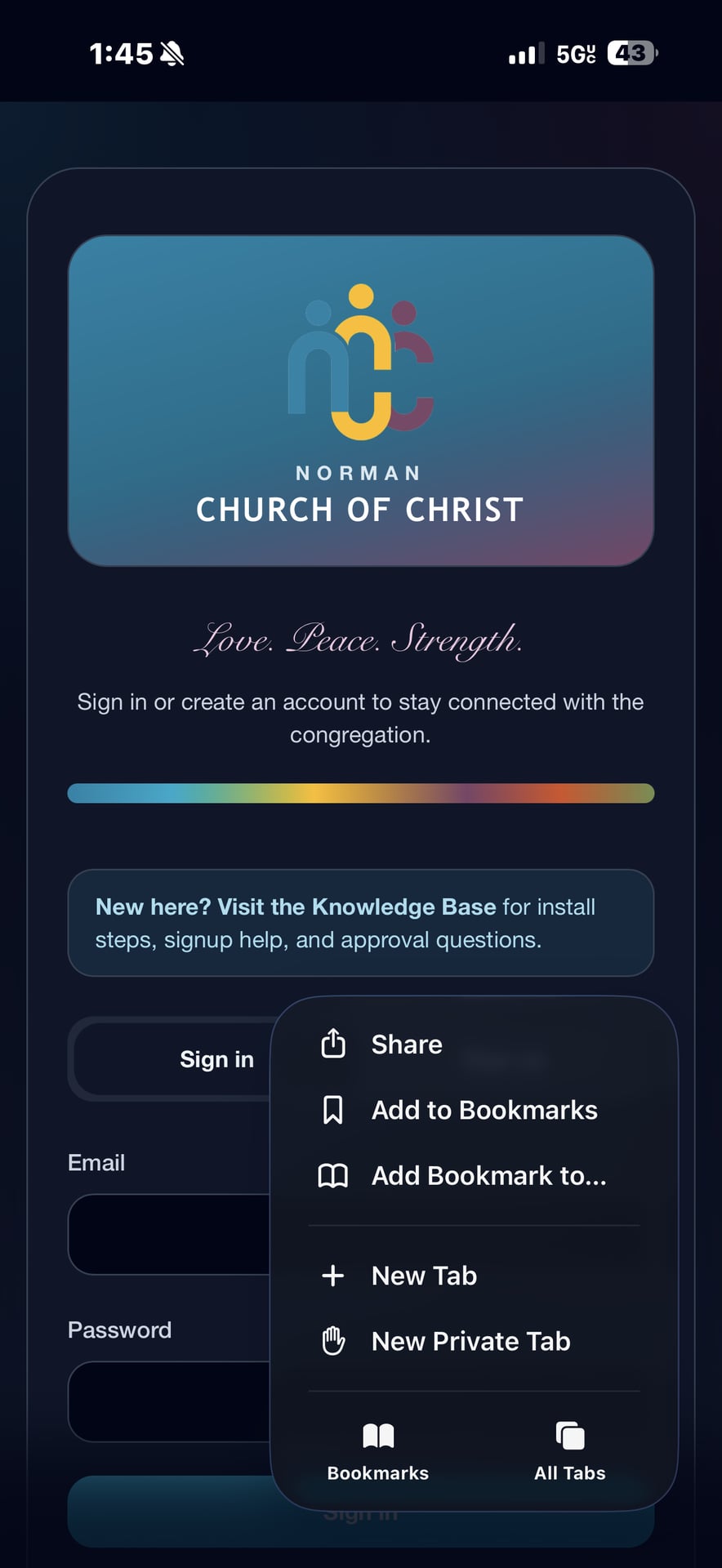
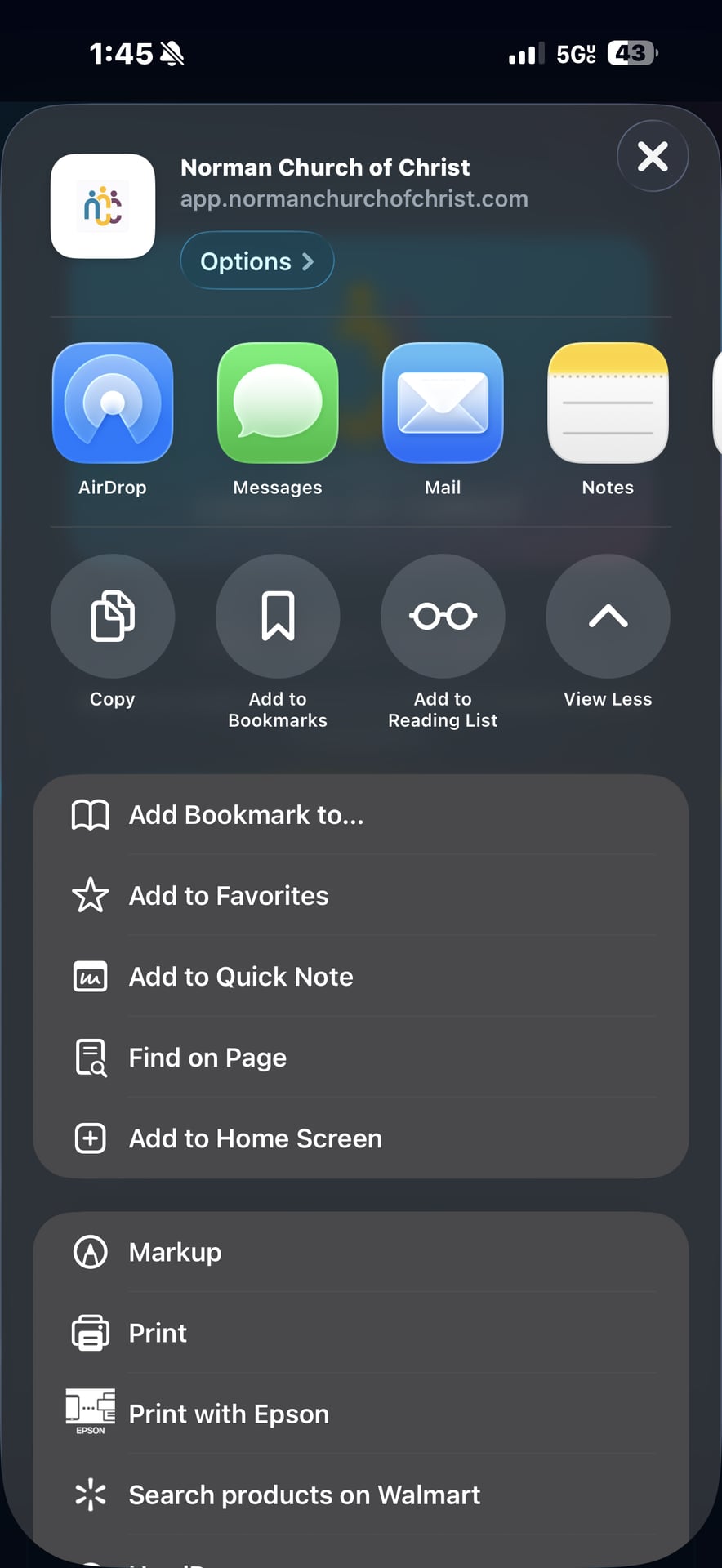
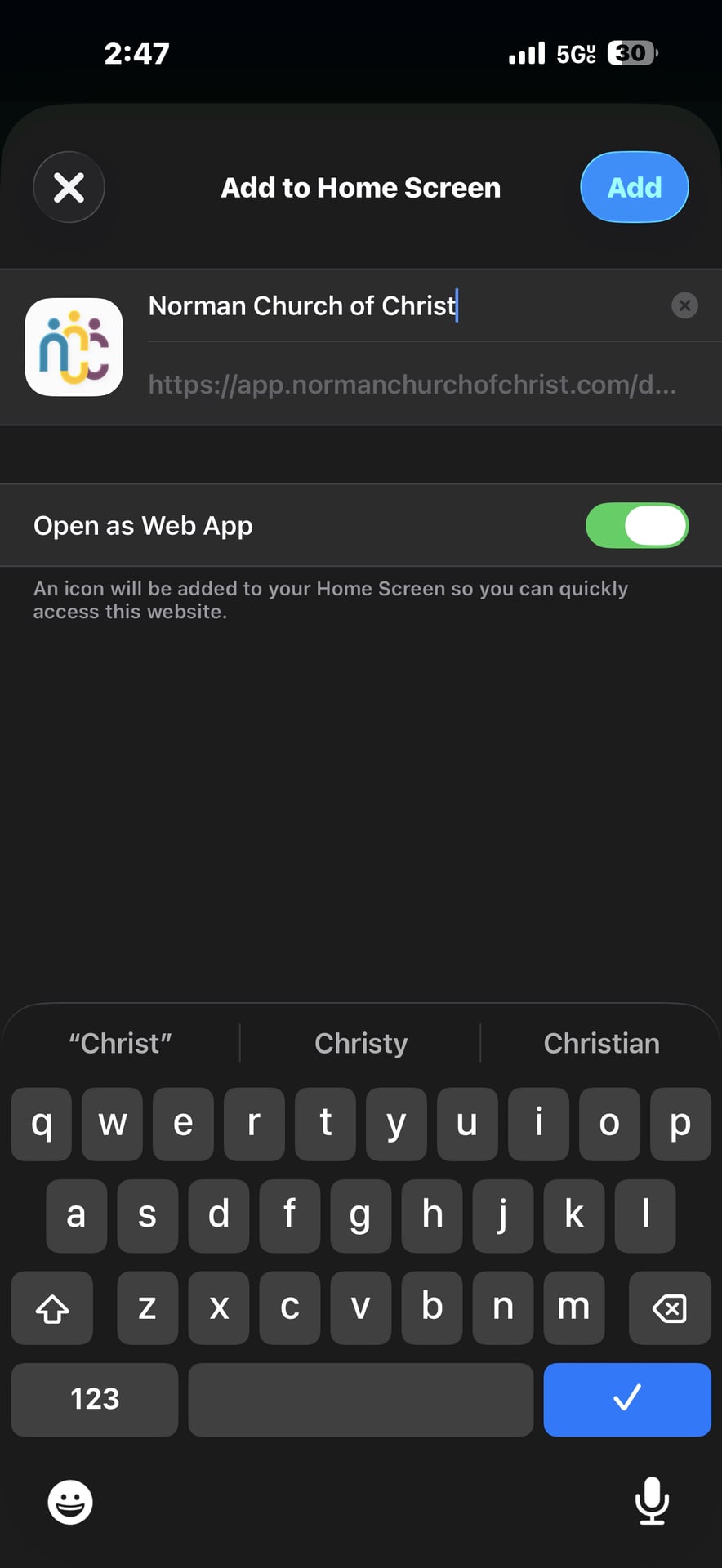
Use Safari for the most reliable iPhone install experience. These illustrations are placeholders until real app screenshots are available.
1Step 1
Open the app website in Safari.
2Step 2
Tap the Share button.
3Step 3
Tap Add to Home Screen.
4Step 4
Tap Add.
5Step 5
Open the new Norman Church of Christ icon from the Home Screen.
Install on Android
Install the app from Chrome or add it to the Home Screen.
Install from Chrome
Android wording varies by device and browser. Chrome may say Install app, Add to Home screen, or a similar phrase.
1Step 1
Open the app website in Chrome.
2Step 2
Tap the three-dot menu.
3Step 3
Tap Install app or Add to Home screen.
4Step 4
Confirm the installation.
5Step 5
Open Norman Church of Christ from the Home Screen or app drawer.
Notifications
Allow notifications and troubleshoot delivery.
Allow notifications
Open Profile, then Notifications, and enable browser notifications when prompted. Your browser or phone may also ask for permission.
Notifications help with chat mentions, direct messages, speaking swap requests, calendar notices, admin approval alerts, and communion reminders.
If notifications do not work
Check that the app is installed or open in a supported browser, notifications are allowed for the website, your device is not blocking notifications, and your in-app notification settings are enabled.
On iPhone, web app notifications usually work best after the app has been added to the Home Screen.
Home Page
Read announcements and upcoming assignments.
What appears on Home
The Home page shows upcoming service assignments, including Speaker, Short Talk, and Communion assignments, plus the monthly service arranger when available.
It also shows church announcements and navigation to other areas of the app.
Calendar
Use calendar views, teaching schedule preview, and subscriptions.
Month, week, and day views
Use Month, Week, and Day views to scan upcoming events. Tap an event to see details such as time, location, description, and available actions.
Event times display in America/Chicago church local time.
Teaching Schedule preview
When a teaching schedule PDF or image has been uploaded for the month, the Calendar can show it as a reference. The uploaded PDF is reference-only; calendar events drive app features.
Subscribe to Calendar
Use Subscribe to Calendar to connect the church calendar to Apple Calendar, Google Calendar, or another calendar app.
Apple Calendar usually updates subscriptions regularly. Google Calendar subscriptions can take hours to refresh, so changes may not appear instantly on Android or Google Calendar.
Speaking Swaps
Request, approve, deny, or suggest alternate speaking assignments.
Request a swap
Members with upcoming speaking assignments can request a swap. Choose one of your assignments, choose another available assignment, add an optional note, and send the request.
The recipient can approve, deny, or suggest an alternative. After approval, the calendar assignments are updated according to the app's swap flow.
Teaching schedule PDF is reference-only
The uploaded teaching schedule file helps people review the schedule visually. Speaking swap actions use the calendar event records, not direct edits to the uploaded PDF.
Communion Signup
Pick months and receive reminders.
Sign up for a month
Open Communion Signup from Helpful Links or the dashboard. Pick the year, find the month, and sign up when it is available.
Only one active signup is allowed per month. Admins can remove a signup when a correction is needed. Reminder notifications can be sent before a signup month begins.
Directory
Find members and manage profile photos.
Find members
Use the Directory search to find members by name, family, email, or phone. Member and family detail pages show the information that has been added to profiles.
Directory information is intended for church family use. Do not share private member details outside appropriate church communication.
Profile photos and positioning
Profile, child, family avatar, and family banner uploads let you position the image before saving. Drag the photo to center faces and use the zoom slider to avoid photos that are too close or too far away.
If an older photo is cropped badly, re-upload it and apply the new positioning before saving.
Chat
Send messages and use mentions appropriately.
Send messages
Use Chat for direct messages and group conversations. Type a message, optionally add a GIF when available, and send.
@mentions can notify specific people in group conversations. Keep messages kind, appropriate, and connected to church use.
Announcements
Read, listen, and review transcripts.
View announcements
Announcements appear on the Home page. Leaders and admins can post updates for the church.
Some announcements may include audio and transcripts. Transcript text is generated for convenience and should be reviewed against the original audio when wording matters.
Profile and Settings
Update personal details, theme, notifications, and sign out.
Manage settings
Open My Profile to update contact information, birthday, anniversary, family, profile photo, family photos, notification preferences, and children listed in your family.
Use the appearance toggle for light or dark mode. Use the account menu to sign out.
Troubleshooting / FAQ
Answers to common problems.
Common questions
Try these checks first. If the problem continues, contact an app administrator.
Why am I still waiting for approval?
Your email may be confirmed, but an administrator still needs to approve your profile. Contact an app administrator if it has been more than a reasonable amount of time.
I forgot my password.
Use the password recovery option from the sign-in experience if available. If you do not see one, contact an administrator so the auth settings can be checked.
Google signup is not working.
Make sure popups are not blocked and use the same Google account you intend to use for church app access. If the issue continues, contact an admin.
I cannot upload a photo.
Use JPG, PNG, or WebP under the listed size limit. HEIC/HEIF photos are not currently supported, so iPhone users may need to choose or export a JPEG.
My photo is cropped badly.
Re-upload the photo, drag it in the positioning editor, adjust zoom, and apply the crop before saving.
I am not receiving notifications.
Check browser permission, device notification settings, and Profile > Notifications. On iPhone, install the app to the Home Screen for best results.
The calendar time looks wrong.
Church events should display in America/Chicago time. Refresh the app and contact an admin with the event name, date, and expected time if it still looks wrong.
The calendar subscription is not updating.
Calendar apps refresh subscriptions on their own schedule. Google Calendar can take several hours to show updates.
I cannot send a speaking swap.
Only eligible upcoming speaking assignments can be swapped. Make sure your account is approved and you have an upcoming assignment.
I cannot see the teaching schedule PDF.
Make sure you are signed in with an approved account. If the month has no uploaded file yet, ask an admin to upload the schedule.
The app looks dark or unreadable.
Use the appearance toggle to switch light or dark mode. If a page is still unreadable, send the page name to an app administrator.
How do I contact an admin?
Contact an app administrator through normal church communication channels. The public help page does not list private contact information.
Contact / Support
Get help from an app administrator.
Contact an app administrator
Contact an app administrator for help with account approval, profile corrections, calendar questions, notifications, or technical issues.
This public page does not expose private email addresses. Use the church's normal support or communication path.